Showing posts with label D365FO. Show all posts

Subscription Billing - Renewals

One thing I appreciate about subscriptions is the automatic renewal process. It's nice to sign up for a subscription and not have to worry about manually renewing every time the contract period is up. This brings in automatic revenue for the company and keeps the hassle of manually renewing out of everyone's hands. 

Fortunately, the process for setting up renewals in Subscription billing in Microsoft Dynamics 365 for Finance and Operations is fairly simple to execute as well. Let's dive in! 


Subscription Billing - Terminate

From time to time, we have all ended a subscription service. It happens - maybe the service doesn't meet your needs anymore. Perhaps it has gotten too expensive. Regardless of the reason, it is a common occurrence and Microsoft Dynamics 365 for Finance's Subscription billing module has a solution for terminating subscriptions.

Now you are probably thinking, "Oh great, something complex to add to my never-ending duties..." 

Nope! Terminating a Billing schedule in the Subscription billing module is easy, and I am going to walk through it. 

The Terminator
"I'll be back... when I am ready to subscribe again"

Deprecate != Depreciate

I often hear/see the words deprecate and depreciate used interchangeably, both in reference to ERP features and functionality. There is a difference in the words, and it's not just the letter i! This is a tough one, because even when you search on the internet, you get mixed results between the two. Let's look at the differences. 

The letter i is not the only difference between deprecate and depreciate.
This letter is not the only difference between these words!

Subscription Billing - Expense Deferrals

A nice addition to the Subscription billing module is Expense deferrals. It's a subtle addition, and some may not even notice it's there! However, you may see benefit if you are part of an organization that pays for large subscriptions, memberships, or investments upfront and you require a methodology to defer these large expenses into an account then move these expenses from that deferred account into an expense account over a period of time. 

Hands taking money out of a wallet

This new addition is not quite as obvious as the Revenue deferral piece discussed in the previous blog: Subscription Billing - Revenue Deferrals, but it is very powerful and can be leveraged in any organization! 

Let's look at how to set up Expense deferrals in Microsoft Dynamics 365 for Finance!


Subscription Billing - Revenue Deferrals

When selling subscriptions, memberships, or prepaid investments, companies often receive large sums of money upfront from their customers and cannot recognize that revenue immediately. This can cause accounting and cashflow issues if the money was immediately available as revenue all at once. Therefore, Microsoft Dynamics 365 for Finance offers Revenue and expense deferrals as part of their new Subscription billing offerings. Revenue deferral allows the revenue to enter a deferred account and be recognized on a schedule to be defined by the accounting team. Let's discuss how to set this up.

Subscription Billing - Free Text Invoice or Sales Order?

When setting up Subscription billing, there are two options for setting up the Recurring contract billing Invoice transaction type - Sales order or Free text invoice. 

Sales order vs Free text invoice

Subscription Billing - Pricing Methods

In my last post on Item types in Subscription billing, I broke down the different item types and how they are used to define the methods in which an item gets billed. In this blog post, I will dive into the Pricing methods that are available to add into our Billing schedule lines.

When setting up Billing schedules within the Subscription billing module for your Customers, there are four Pricing methods that a user can employ. 

  • Standard
  • Flat
  • Tier
  • Flat Tier

The methodology behind a couple of these pricing methods can be a bit confusing, so I am here to help de-mystify them for you! 


Subscription Billing - Item Types

When signing up for a subscription, there are often different methodologies of how to pay for that subscription. Similarly, companies require different methodologies for billing. For example, some companies bill for their services at a flat rate per period. Others may operate on a usage basis, such as $x.xx per hour used. Lastly, some billing occurs as a fixed amount that gets billed when the goods/services are fully consumed.

Orange "Subscribe now!" button with cursor on top

The Subscription billing module in Dynamics 365 for Finance offers the flexibility to bill using these different methodologies. There are different Item Types and Pricing methodologies that can be used, and I am going to start breaking them down in this blog post for you today! This blog post will cover the different Item types available, and I will break down the Pricing methods in a separate blog post. 


Subscription Billing - New Feature!

Subscription billing is a new feature that was introduced in 10.0.25. As more and more companies go to a subscription-based billing model, this feature has proven to be extremely relevant and beneficial! 


This is the first in a series of blogs I will be writing about this new functionality and what you can do to enable, configure, and use Subscription billing in Dynamics 365 Finance. Also, if you are attending Dynamic Communities' North American Summit October 10th-13th, 2022, I will be presenting on this topic there as well. 

Common Data Import Errors

If you have ever imported data using Data management in Microsoft Dynamics 365 for Finance and Operations and received an error before any records even went in, I am sure you were frustrated. 

Here are a few tips and tricks to consider before ever importing your data:

  • Ensure the data formatting in Excel is consistent
  • Custom or Special data formats in Excel will not import properly, use standard formatting always
  • Data that was derived from formulas will likely generate an error message. Copy that data and paste it back in as values instead of a formula. 
  • Check spellings - especially on data that is validated by the system (Address/city names, Dropdown values, etc)

Once your data is clean, you can still get errors. Here are some common errors that you can run into before any records ever hit the staging table. 

OCR in Expense Management

I recently got to implement OCR in Expense management in Microsoft Dynamics 365 for Finance and Operations. Turns out, there is a lot of interest in this topic, so I put together a little blog about it. 


What is OCR? 

Optical Character Recognition. This is used to process documentation such as receipts and invoices by using Azure Cognitive Services to "read" the documentation and import the data into the system, cutting down on manual system entry.

Mobile Workspaces are Being Deprecated

This has been a rumor for a while now, but the announcement has been made that the concept of the Mobile Workspace in Dynamics 365 for Finance and Operations is being deprecated. 

Microsoft released this information on June 3, 2022, here: Removed or Deprecated Platform Features

Here is a screenshot of the relevant information for those of you who do not want to click the link.

NSF Payments - The What, Why, and How of NSF in D365 Finance

NSF, or Non-sufficient funds, are payments that have been received that are rejected by the bank as the account tied to the payment does not have sufficient funds to be paid out. These are often referred to as "bounced checks." This blog will detail how to set up and utilize the NSF functionality in Dynamics 365 for Finance to reverse the payment and mark it as NSF.


Human Resources Data Management - Workers Without Employment

When importing Workers into Dynamics 365 Human Resources (now in D365FO), you populate the Worker data entity with as much information as possible. Then, start the import using Data management and after the import is complete, you check Human resources > Workers > Workers, and there are no records to be found. The import says it was successful, so where did the worker records go?

If you look around, you will find them in the Workers without employment filtered view (Human resources > Workers > Workers without employment.) 


View of Human resources module with "Workers without employment" selected


Great, the records made it into the system, but I don't want to touch each record and add employment dates. How do we use the Data management functionality to add "employment" to these worker records?

Credit Management Blocking Rules Sequencing

Something happened while I wasn't looking and now we have a clearer sequencing of Credit management Blocking rules. This has been a much-needed change, and I am happy to report on it!Hierarchical arrows with the words "There is a process!" on them

Sequencing of Blocking Rules

Credit Management Release to Warehouse Credit Hold Loop

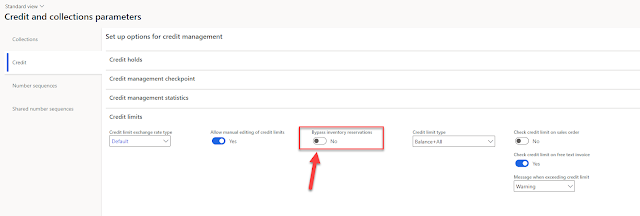
Some big changes were made to Credit management in recent versions that need to be addressed. One of which is the following parameter: 

Bypass inventory reservations


Image of Credit and collections parameters with Bypass inventory reservations highlighted
A new parameter has appeared called Bypass inventory reservations, but what does it mean?

Set up Collections Agents and Customer Pools

When setting up the Credit and collections module in your D365 Finance environment, you will want to ensure that your collections team will have access to work with their assigned customers. Logging in and seeing all of the Customers with all of their information can be an overwhelming experience, making it more difficult for your collections team to do their job. D365 Finance allows for the creation of Collections agents with the ability to filter only assigned information.

Using "Old" AX filtering techniques in D365FO

When I worked daily in AX 2012, filtering became my best friend. I appreciated the "Ctrl + g" grid filtering header that opened on all of my forms and allowed me to search my data by using all of the great filter and query options listed in the article below:

https://docs.microsoft.com/en-us/dynamicsax-2012/appuser-itpro/advanced-filtering-and-query-options

Looking for a Customer that starts with G, ends with V, and is not Gustav? Sure thing!

Error: Production order ***** could not be scheduled. Not enough capacity could be found.

Ah, the good old capacity error. "Production order ***** could not be scheduled. Not enough capacity could be found."

There are a few main culprits for this error. 

New feature: Enable batch processing for bank payment advice reports

One of the pain points in AX/F&O was that you could not set up batch processing for your Payment advice reports. 

In late 2019/early 2020, a new feature was added called "Enable batch processing for bank payment advice reports." 

The description reads as follows:

This feature lets you use batch processing for both the customer and vendor bank payment advice reports. To use this feature you must use BankPaymAdviceVendV2 and BankPaymAdviceCustV2 bank payment advice, and set them up as the customer and vendor report formats in print management.

How do we set this up and use this functionality? In our example today, we will look at this from an Accounts payable/Vendor perspective.